


Resubmission Guide
Overview
This guide explains how to make changes to a Single Audit submission that has already been accepted by the Federal Audit Clearinghouse (FAC).
Note: If you are submitting an audit to the FAC for the first time, see our regular submission guide.
Note: If your submission is still in progress and has not yet been accepted by the FAC, you cannot use the resubmission process. Return to your in-progress submission and make the necessary changes before completing the submission.
The FAC supports different ways of resubmitting an accepted submission depending on what needs to be changed. See Types of resubmissions.
UEI changes
An auditee's Unique Entity Identifier (UEI) cannot be changed through the resubmission process. The UEI associated with a FAC submission must match the auditee's UEI in SAM.gov. If you believe the UEI associated with an accepted FAC submission is incorrect, contact the FAC Help Desk.
Before you begin
Make sure resubmission is appropriate
Before beginning, determine whether the correction requires a full resubmission with a date change (material changes to the PDF audit report), an audit report modification with no date change (non-material changes to the PDF audit report), or a SF-SAC-only modification with no date change.
If you are uncertain whether changes to an audit require the PDF audit report to be reissued, consult with appropriate parties, such as your auditor or Cognizant agency, before beginning the FAC process.
Coordinate with the auditor and auditee
The resubmission process requires the applicable FAC certifications to be completed again.
Before beginning a resubmission, make sure that both the Auditor Certifying Official and Auditee Certifying Official are aware of the changes and are prepared to review and certify the revised submission.
Have the previous submission information available
You may find it helpful to review or download the information from the currently accepted submission before beginning.
You can locate an accepted submission using the FAC Search.
Make sure you are authorized to submit the changes
You must be authorized to provide the revised information to the FAC.
A resubmission or modification should be based on an identified correction to an accepted submission. For example, a correction may result from an error identified by the auditor or auditee or from an issue identified during federal agency oversight.
Types of resubmissions
There are three choices for a resubmission:
- A material change to the PDF audit report, which results in a new FAC acceptance date. For this choice, the SF-SAC data collection form can also be edited.
- A non-material change to the PDF audit report, where the acceptance date stays the same from the original submission. For this choice, the SF-SAC data collection form can also be edited.
- Updates to the SF-SAC data collection form only, where the acceptance date stays the same from the original submission. For this choice, the PDF audit report cannot be edited.
Once you select a resubmission “type of change” option, two required sections will open asking you to document information about your resubmission. The first involves documenting the person who is responsible for requesting the resubmission: Auditee, Auditor, or Oversight Official. The second requires you to select one or more reasons for the resubmission.
If you cannot find any reasons that apply to your resubmission, you have likely chosen the wrong resubmission type. Go back and choose a different resubmission type and proceed again from there.
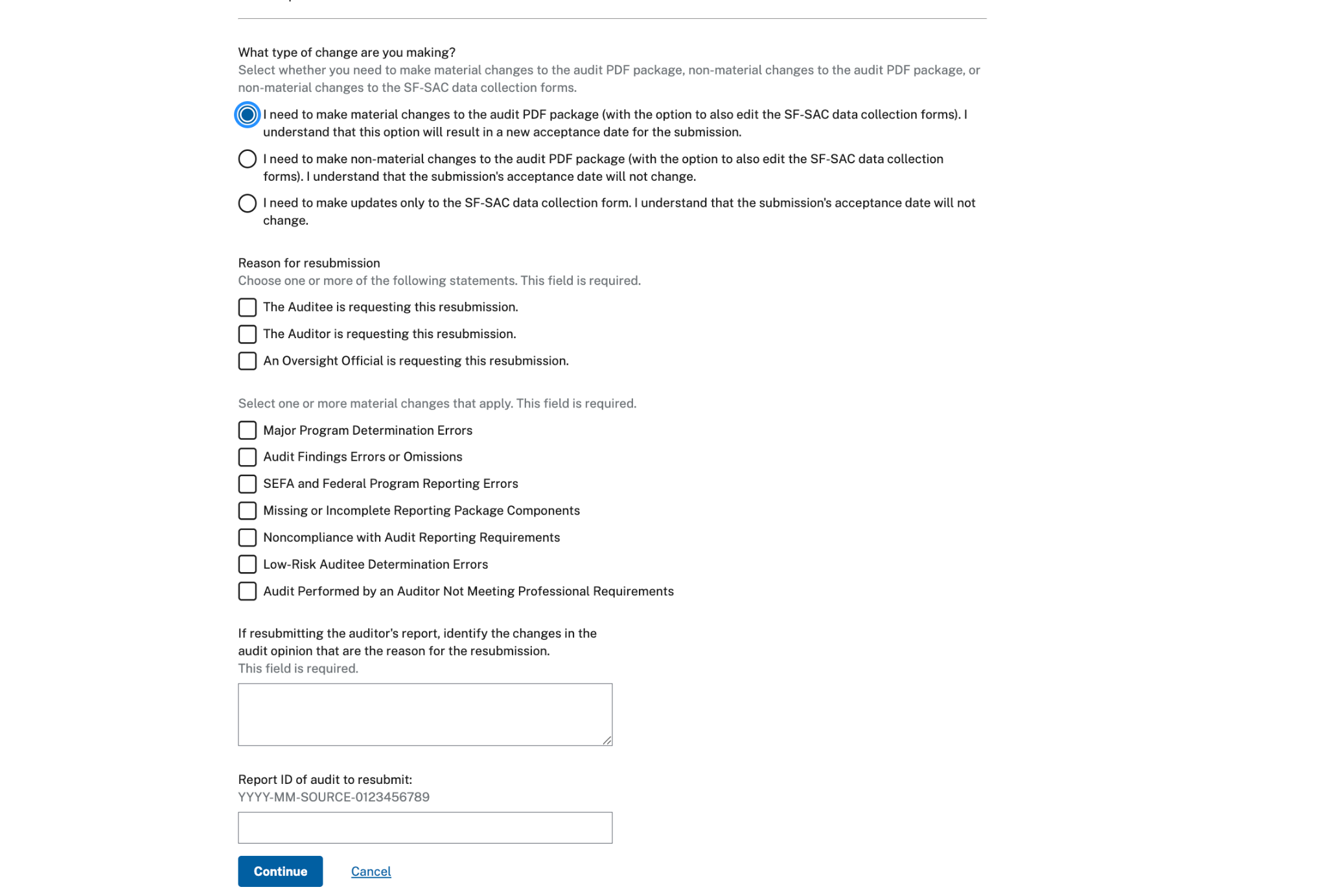
Material changes to the PDF audit report
Reasons include:
- Major Program Determination Errors
- Audit Findings Errors or Omissions
- SEFA and Federal Program Reporting Errors
- Missing or Incomplete Reporting Package Components
- Noncompliance with Audit Reporting Requirements
- Low-Risk Auditee Determination Errors
- Audit Performed by an Auditor Not Meeting Professional Requirements
Image
A screenshot of the FAC resubmission form with the material change to the audit PDF option selected and the available material-change reasons displayed.
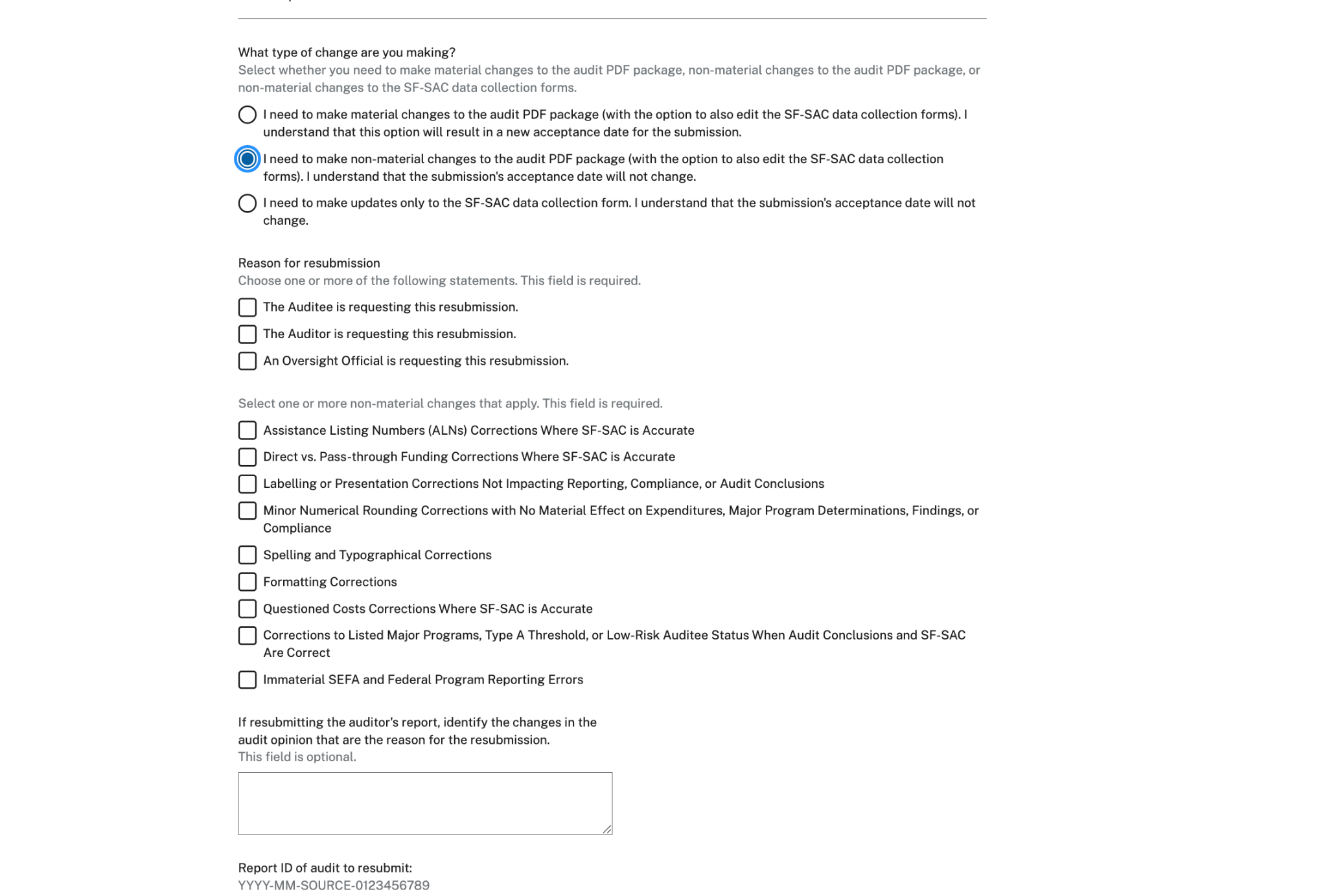
Non-material changes to the PDF audit report
Reasons include:
- Assistance Listing Numbers (ALNs) Corrections Where SF-SAC is Accurate
- Direct vs. Pass-through Funding Corrections Where SF-SAC is Accurate
- Labelling or Presentation Corrections Not Impacting Reporting, Compliance, or Audit Conclusions
- Minor Numerical Rounding Corrections with No Material Effect on Expenditures, Major Program Determinations, Findings, or Compliance
- Spelling and Typographical Corrections
- Formatting Corrections
- Questioned Costs Corrections Where SF-SAC is Accurate
- Corrections to Listed Major Programs, Type A Threshold, or Low-Risk Auditee Status When Audit Conclusions and SF-SAC Are Correct
- Immaterial SEFA and Federal Program Reporting Errors
Image
A screenshot of the FAC resubmission form with the non-material change to the audit PDF option selected and the available non-material-change reasons displayed.
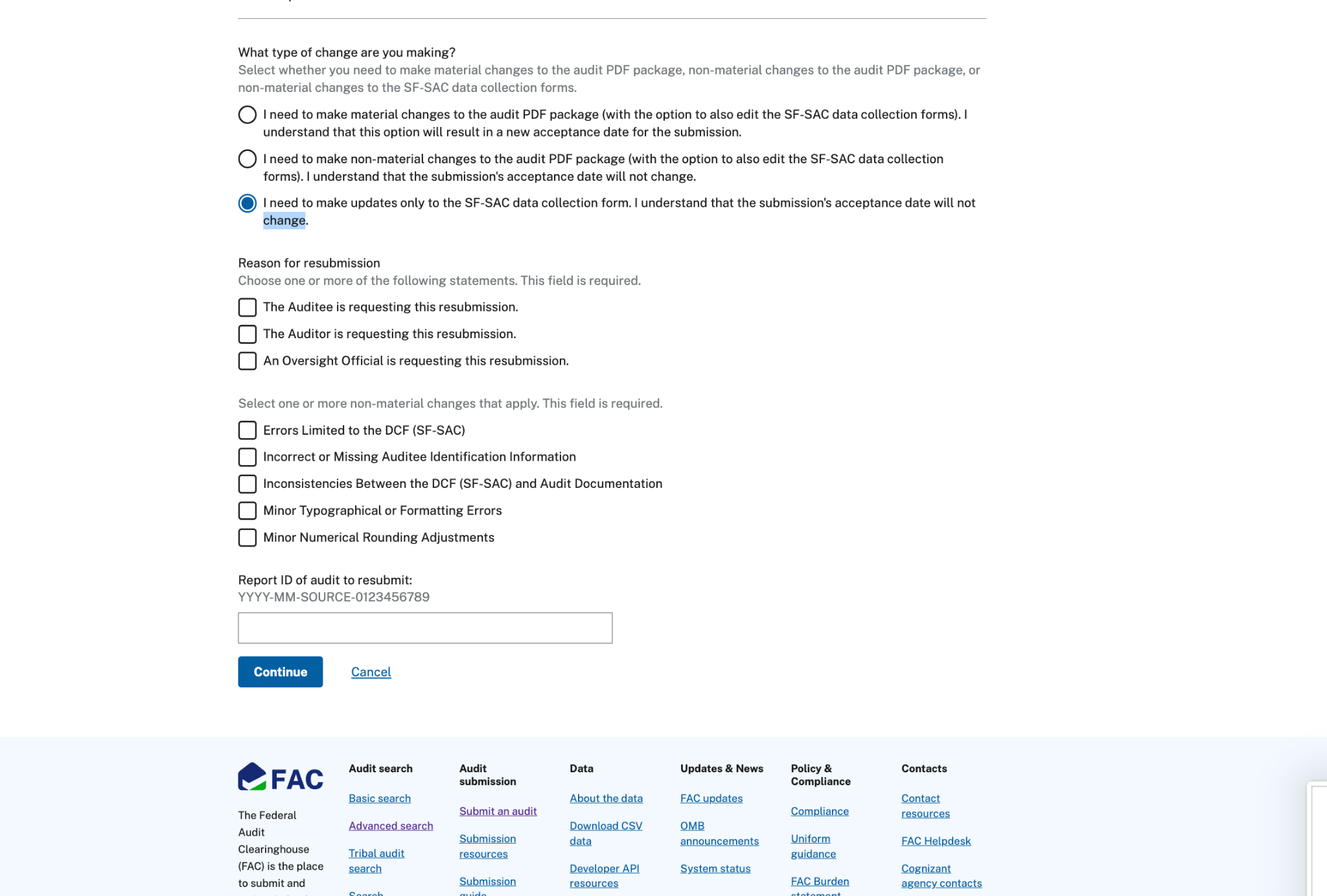
Modifications only to the SF-SAC
Reasons include:
- Errors Limited to the DCF (SF-SAC)
- Incorrect or Missing Auditee Identification Information
- Inconsistencies Between the DCF (SF-SAC) and Audit Documentation
- Minor Typographical or Formatting Errors
- Minor Numerical Rounding Adjustments
Image
A screenshot of the FAC resubmission form with the SF-SAC-only modification option selected and the available reasons displayed.
How to submit a resubmission
Step 1: Start a resubmission
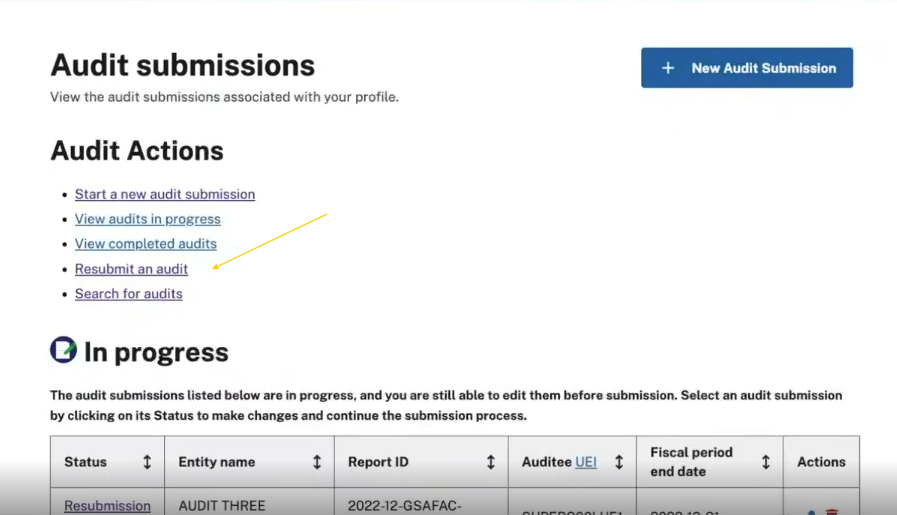
Sign in to the FAC. From the home page, go to “Audit actions” and select “Resubmit an audit.”
Image
A screenshot of the FAC Audit submissions page. In the Audit Actions list, the Resubmit an audit link is highlighted.
Step 2: Select resubmission type and reason(s)
You are presented with three choices: material change to the PDF audit report, non-material change to the PDF audit report, and SF-SAC-only modification. The FAC will use your selection to determine which portions of the submission can be changed.
After you select a type of resubmission, additional questions will appear. Document who is requesting the resubmission and choose from the specific justifications listed.
If you cannot find a relevant reason listed, you likely have chosen the wrong type of resubmission. You can change your resubmission type while the resubmission is in progress if you determine that a different type is appropriate. You can edit your selections from the checklist page, if needed, at any time before submission.
For material PDF changes, a textbox will appear near the bottom of the page requiring you to describe changes to the audit opinion. You can copy and paste this information from the re-issued auditor’s opinion. For a non-material PDF change, this explanation is optional.
Step 3: Enter the Report ID
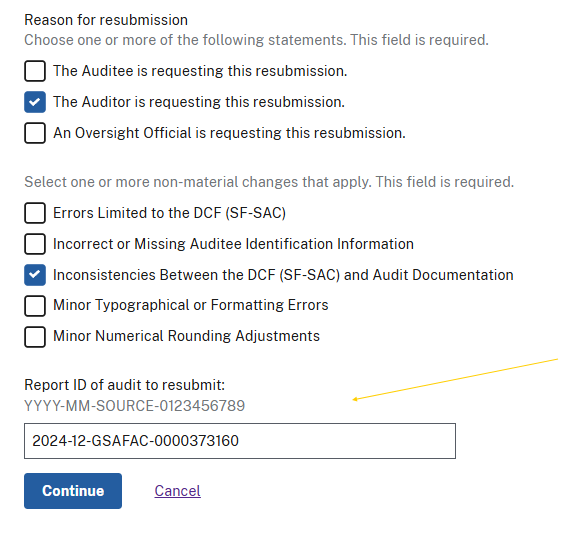
After selecting the reasons for resubmission, enter the Report ID for the accepted submission that you need to correct.
A resubmission must be based on an accepted FAC submission. If the submission is still in progress, return to that submission and make the correction there instead.
Image
A screenshot of the FAC resubmission form showing the requestor and reason selections and the Report ID field near the bottom of the page.
What the FAC copies from the previous submission
When you start a resubmission, the FAC creates a new version and copies information from the previous submission into it. You do not need to recreate the submission from scratch.
Data from the originally uploaded SF-SAC workbooks is used to prepopulate the new submission. The original files themselves, however, are not made available for users to access in a resubmission.
The audit report PDF is also carried forward. Whether you can replace it depends on the resubmission type you selected:
- For SF-SAC-only changes, the audit report cannot be changed.
- For material or non-material audit report changes, the audit report can be replaced.
Step 4: Make your corrections
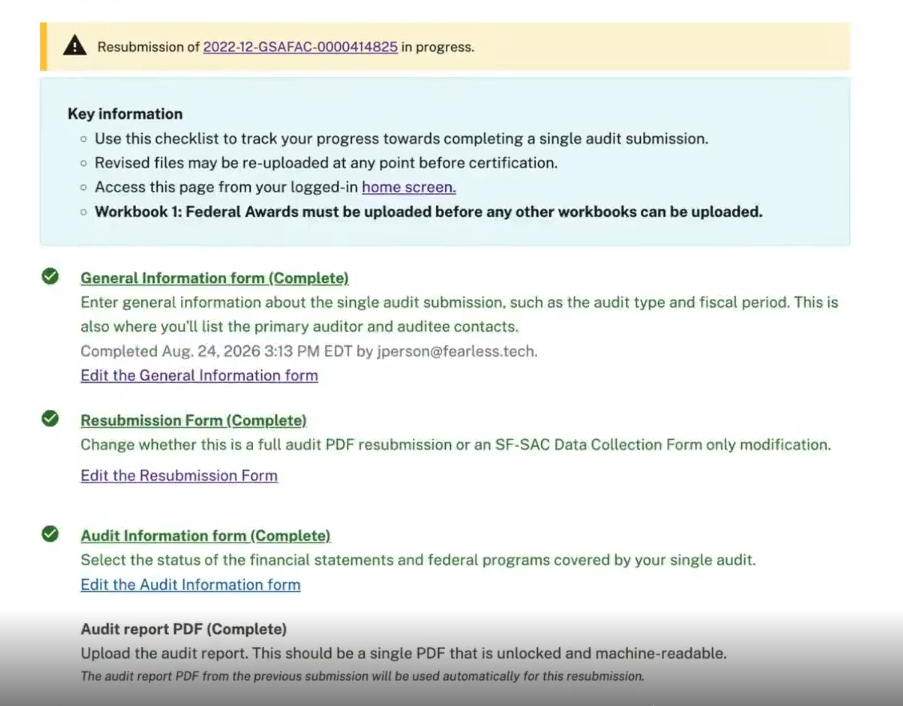
When the new version opens, many sections of the submission checklist may already show as “Complete.” This is because the FAC has copied the applicable information from the previous submission. The SF-SAC data collection files do not copy over as Excel spreadsheets. In other words, they cannot be downloaded during the resubmission process; only the data in them is copied over.
A yellow banner at the top of the checklist indicates that a resubmission is in progress.
Image
A screenshot of a FAC resubmission checklist. A yellow banner indicates that a resubmission is in progress, and several checklist sections already show as Complete.
Open only the sections that need to be corrected and make the necessary changes. You are still responsible for reviewing the entire resubmission for accuracy before certification.
The FAC will perform its normal data validations as well as validations intended to ensure that related information remains consistent after your changes.
For example, if a change to one SF-SAC workbook affects information reported in another workbook, you may be required to update the related information before you can proceed.
Step 5: Review the changes from the previous version
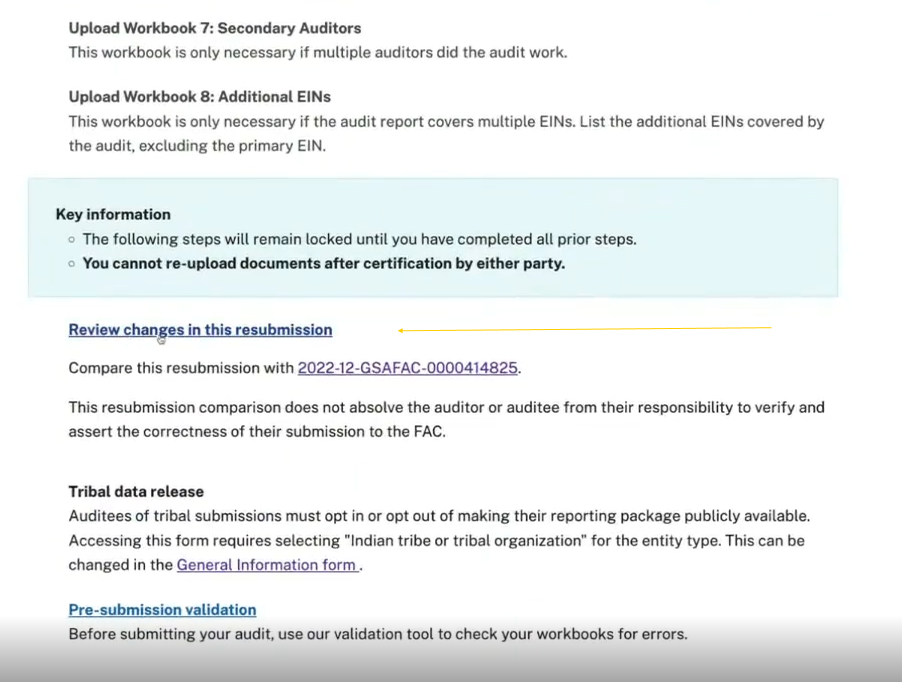
Before certification, select “Review changes in this resubmission” from the submission checklist.
Image
A screenshot of the FAC submission checklist showing the Review changes in this resubmission link.
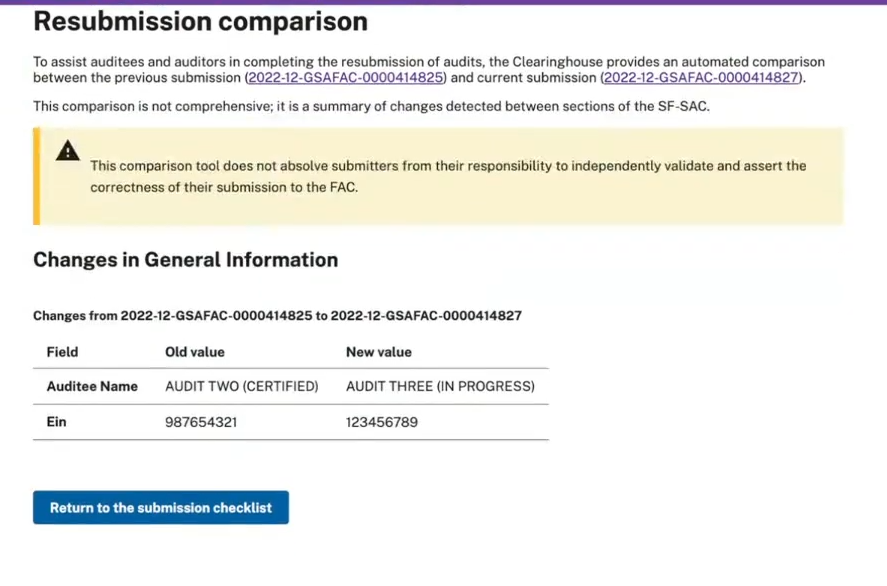
The FAC will compare the current resubmission with the previous version and display detected changes to SF-SAC information, including changes made in web forms and workbook data.
For an audit report PDF, the comparison can identify that the PDF was replaced, but it does not identify individual differences within the two PDF files.
The comparison is a review aid and is not comprehensive. The auditor and auditee remain responsible for independently reviewing the submission and certifying that the information submitted to the FAC is correct.
Image
A screenshot of the FAC resubmission comparison page showing changes detected between the previous submission and the current resubmission.
Step 6: Certify the submission
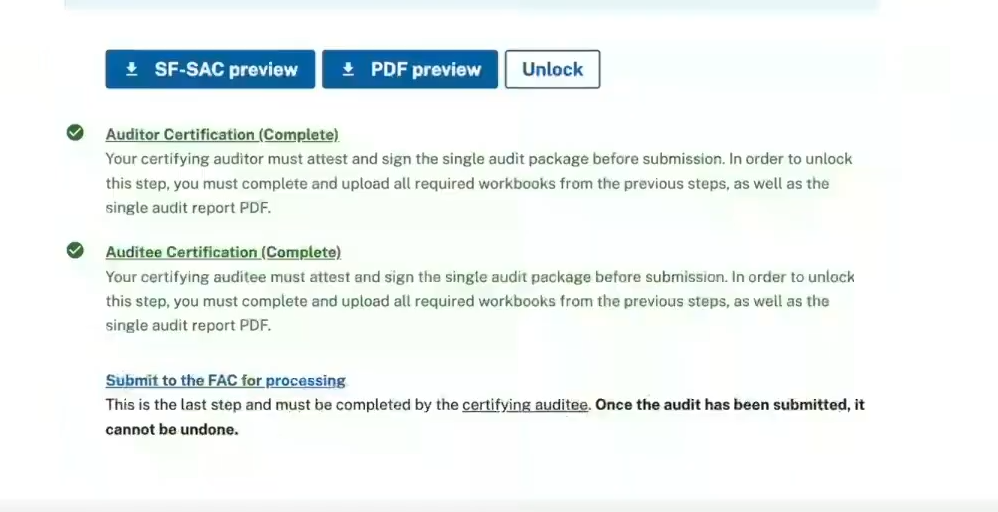
The applicable auditor and auditee certifications must be completed again before the resubmission can be accepted.
Image
A screenshot of the FAC submission checklist showing completed Auditor Certification and Auditee Certification sections and the link to submit the audit to the FAC for processing.
Step 7: Submit to the FAC
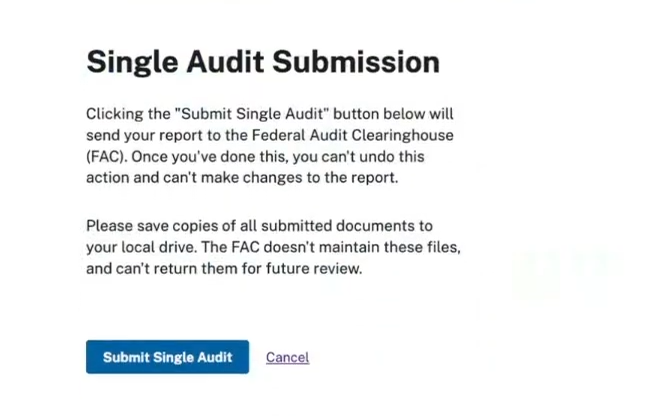
After all required certifications and validations are complete, submit the revised record to the FAC.
Image
A screenshot of the Single Audit Submission page with the Submit Single Audit button.
Frequently asked questions
Can I use the resubmission process for an audit that has not been accepted yet?
No. The resubmission process applies only to submissions that have already been accepted by the FAC. If your submission is still in progress, make the correction to the existing submission before completing it.
Do I need to upload a new audit report PDF if the report has not changed?
No. When selecting a SF-SAC modification, you are not required to upload another copy of the PDF.
Do I need to upload new SF-SAC workbooks if the SF-SAC information has not changed?
No. You only need to provide revised SF-SAC information when the SF-SAC data needs to change.
Can I upload a new audit report as part of a SF-SAC modification?
No. A SF-SAC modification is limited to changes to SF-SAC information.
Can I change the UEI through a resubmission?
No. The UEI cannot be changed through the FAC resubmission process. If the UEI associated with an accepted submission is incorrect, contact the FAC Help Desk.
Will my FAC acceptance date change?
It depends on the type of correction.
- Material changes to the PDF audit report will result in a new FAC acceptance date.
- Non-material changes to the PDF audit report will not change the FAC acceptance date.
- Modifications to the SF-SAC will not change the FAC acceptance date.
Will a resubmission receive a new Report ID?
Yes. The new record will also receive the next version number.
What happens to the original submission?
The FAC retains the previous version but marks it as deprecated. Public FAC searches display the most recent version only. Privileged users will have access to the original submission and all subsequent versions.
Will I have to certify the submission again?
Yes. An Auditor Certifying Official and the Auditee Certifying Official must complete certification for the resubmission.
What if changing one field causes other SF-SAC information to become inconsistent?
The FAC performs cross-validations on related SF-SAC information. If your change causes related information to become inconsistent, the FAC will require you to correct the affected information before you can complete the submission.
Can I process a resubmission on an older version of the audit?
No. You must process the resubmission on the most recent version. Once a version has been replaced by a later resubmission, that older version cannot be used to start a resubmission.
Why do sections of my new resubmission already say “Complete”?
The FAC copies applicable information from the previous submission into the new version. A section marked Complete may therefore contain information from the prior submission. You are responsible for reviewing the resubmission and making any necessary corrections before certification.